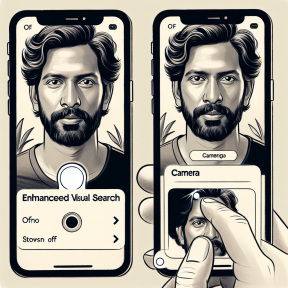
Disabling Enhanced Visual Search for Photos on iPhone or iPad
Apple’s Enhanced Visual Search (EVS) is an innovative feature launched in iOS 18, iPadOS, and macOS Sequoia. This sophisticated machine learning technology enables users to recognize geographical landmarks in their images, even if those images do not include geolocation details like GPS or EXIF metadata.
Understanding Enhanced Visual Search
EVS allows users to find landmarks by entering a landmark name in the Photos app. The system searches your library for images that feature the specified landmark. Alternatively, you can swipe up on a building in an image and select “Look Up Landmark.” If the landmark is recognized, the Photos app will provide information regarding its identity. This impressive technology is also applicable to videos, delivering a thorough search experience.
How Enhanced Visual Search Works
Apple’s EVS harnesses both on-device and server-side analysis for landmark searches. When you upload photos to your library, the operating system requires a few moments to analyze them. During this time, trying to execute an EVS search will result in a message indicating that analysis is underway. Once completed, you can effectively search for landmarks.
The procedure involves generating a vector embedding from the image data, which is a subset of the ML model containing potential landmarks. These embeddings are encrypted and transmitted to Apple for comparison with an extensive database of worldwide landmarks. Notably, your actual photos are kept private, and embeddings are not retained after analysis.
Privacy Measures in EVS
Apple places a high priority on privacy with EVS. The embeddings and matching data are never connected to your Apple Account, and the OHTTP relay is used to shield your IP address during communications. The company claims that it does not retain the embeddings after analysis, ensuring your data stays secure.
How to Turn Off Enhanced Visual Search
While EVS is set to on by default in iOS 18 and macOS Sequoia, users who seek privacy can choose to disable this feature.
On iOS Devices
- Launch the Settings app.
- Go to Apps -> Photos.
- Turn off the Enhanced Visual Search toggle.
On macOS
- Open the Photos app.
- Navigate to Photos -> Settings -> General.
- Uncheck the Enhanced Visual Search option.
Moreover, there is a feature to disable the Include Location Information setting when sharing photos for added privacy.
Conclusion
Apple’s Enhanced Visual Search signifies a major advancement in photo search functionalities, merging innovation with privacy. Users have the freedom to utilize this feature or withdraw if privacy is their main concern. As technology progresses, Apple remains dedicated to achieving a balance between cutting-edge capabilities and strong privacy protections.
Frequently Asked Questions
Q1: What is Enhanced Visual Search (EVS) in Apple’s Photos app?
A1: EVS is a functionality in iOS 18, iPadOS, and macOS Sequoia that enables users to locate geographical landmarks within photos using machine learning, even in the absence of geolocation metadata.
Q2: How does EVS ensure my privacy?
A2: EVS employs on-device analysis and encrypts data prior to sending it to Apple. Embeddings are not retained after analysis, and communications are safeguarded by an OHTTP relay to protect your IP address.
Q3: Can I use EVS for videos?
A3: Yes, EVS is applicable for both photos and videos, allowing users to search for landmarks across various media formats.
Q4: How do I disable EVS on my iPhone?
A4: Access the Settings app, navigate to Apps -> Photos, and switch off the Enhanced Visual Search toggle.
Q5: Is EVS available on all Apple devices?
A5: EVS is available on devices operating with iOS 18, iPadOS, and macOS Sequoia.
Q6: Does Apple store any of my photos when using EVS?
A6: No, Apple does not retain your actual photos or the embeddings generated during the EVS analysis process.