Apple 05
Employing the Latest iOS 18 iPhone Control Center: A Comprehensive Tutorial
Mastering the iOS 18 Control Center: An In-Depth Guide to Apple's Latest Update With the arrival of iOS 18, Apple has rolled out one of the most impactful...
- Published
5 minute read
Mastering the iOS 18 Control Center: An In-Depth Guide to Apple’s Latest Update
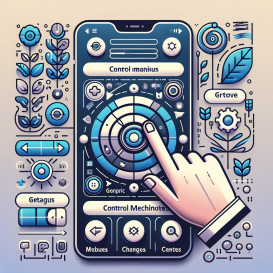
With the arrival of iOS 18, Apple has rolled out one of the most impactful enhancements to the iPhone Control Center in years. No longer limited to a single screen or a few toggles, the Control Center in iOS 18 is now more robust, customizable, and user-friendly than ever before. Whether you’re a tech aficionado or simply someone who desires quicker access to their favorite applications and settings, this guide will provide you with all the essential information.
What Is the iPhone Control Center?
The Development of a Crucial iOS Feature
The Control Center first appeared with iOS 7, giving users a rapid method to toggle settings such as Wi-Fi, Bluetooth, and display brightness. Although the structure and aesthetics have undergone slight adjustments throughout the years, its fundamental functionality remained mostly constant — until now. With iOS 18, the Control Center experiences a comprehensive redesign, promoting greater customization, enhanced third-party integration, and a multi-page layout that facilitates smoother and more intuitive navigation.
How to Access the Upgraded Control Center
Simple Navigation for Every iPhone Model
Depending on your iPhone model, you can access the upgraded Control Center in the following ways:
- If your iPhone is equipped with Face ID (like the iPhone 16), swipe down from the top-right corner of the display.
- If your iPhone includes a Home button with Touch ID, swipe up from the bottom of the display.
Upon entering, you’ll observe that the new layout is traditionally split into three sections:
- Page 1: Frequently used controls such as torch, camera, and screen rotation lock.
- Page 2: Dedicated controls for media playback.
- Page 3: Settings for connectivity such as Wi-Fi, Cellular Data, and Bluetooth.
Personalizing the Control Center
Your iPhone, Tailored to You
A standout aspect of iOS 18’s Control Center is the capability to fully customize it. Users are no longer restricted to Apple’s default settings — the update now accommodates third-party app integrations, enabling a personalized experience tailored to specific preferences.
To personalize:
- Open Control Center.
- Tap the “+” icon in the upper-left corner to enter editing mode.
- Tap “Add a Control” found at the bottom to explore the control gallery.
- Tap any control to incorporate it. You can drag it to rearrange its order or move it among pages.
- Tap the “—” icon to eliminate any undesired controls.
- Swipe up from the bottom to save your modifications.
Additionally, you can adjust the size of controls by dragging the handle located in the bottom-right corner of each button, allowing you to prioritize what matters most at a glance.
Organizing Controls into Categories
Streamlined Access to Similar Functions
iOS 18 presents control groups — a novel way to gather similar controls together. This is especially advantageous for power users who depend on numerous settings and shortcuts.
To establish a new group:
- Access editing mode by tapping the “+” in the top-left.
- Tap the small circle on the right side of the screen below existing groups.
- Tap “Add a Control” to access the control gallery.
- Choose the controls you wish to incorporate into the new group.
- Repeat as necessary, then swipe up to complete the process.
This functionality is ideal for organizing controls like Bluetooth speakers, wireless earbuds, and smart home devices, ensuring your Control Center remains tidy and efficient.
More Than Just Control Center: Additional iOS 18 Improvements
Beyond a Cosmetic Update
The refreshed Control Center is merely one element of a wider array of advancements in iOS 18. Some of the most important improvements are:
- Enhanced Home Screen customization with increased widget flexibility and layout choices.
- A redesigned Photos app that simplifies the browsing and organizing of images.
- The launch of Apple Intelligence in iOS 18.1, providing smarter suggestions and automation for your iPhone.
These updates showcase Apple’s ongoing dedication to crafting a more individualized and intuitive user experience.
Conclusion
The iOS 18 Control Center upgrade is a revolutionary change for iPhone users. It offers a new level of customization and capability that was previously only attainable through third-party applications or jailbreaking. Featuring a multi-page layout, support for third-party controls, and organized groups, the new Control Center truly empowers the user.
Whether you’re managing your Apple AirPods, streamlining smart home controls, or simply looking to declutter your digital life, iOS 18’s Control Center simplifies processes more than ever.
Frequently Asked Questions
1. How can I access the new Control Center in iOS 18?
To open Control Center, swipe down from the top-right corner on Face ID-enabled iPhones or swipe up from the bottom on Touch ID devices.
2. Is it possible to add third-party apps to Control Center?
Yes, iOS 18 now supports third-party app controls, enabling you to add shortcuts from your most frequently used apps directly into Control Center.
3. How do I eliminate a control from Control Center?
Enter editing mode by tapping the “+” icon, then tap the “—” button next to the control you wish to remove.
4. Can I organize controls into specific groups?
Certainly. You can create new control groups to cluster similar settings or app shortcuts, making your Control Center more organized and efficient.
5. Is resizing the buttons in Control Center an option?
Yes, you can easily adjust the size of a control by dragging the handle located at the bottom-right corner of the button.
6. What other new features are included in iOS 18?
iOS 18 brings enhancements to Home Screen layout customization, a redesigned Photos app, and Apple Intelligence features introduced in iOS 18.1 for smarter device interaction.
7. Will these features be accessible on all iPhones?
Most features are available on iPhone models compatible with iOS 18. However, certain functionalities like Apple Intelligence may require newer hardware, such as the iPhone 16 or later.