Apple 05
Steps to Shut Down Your iPhone in iOS 18
How to Shut Down Your iPhone in iOS 18: An In-Depth Guide Apple's newest iOS 18 brings a fresh and simpler method to power off your iPhone. Yet, it can be...
- Published
5 minute read
How to Shut Down Your iPhone in iOS 18: An In-Depth Guide
Apple’s newest iOS 18 brings a fresh and simpler method to power off your iPhone. Yet, it can be somewhat elusive unless you know where to find it. Whether you’re storing your device, resolving issues, or getting it ready for repairs, familiarizing yourself with the various shutdown techniques can be extremely helpful.
In this guide, we’ll outline all the options available to turn off your iPhone, including the newly introduced Control Center feature in iOS 18.
Understanding Sleep Mode Versus Powering Off
Before we dive into the shutdown options, it’s crucial to differentiate between putting your iPhone to sleep and completely powering it off.
- Sleep Mode: Pressing the Side or Sleep/Wake button on the right side of your iPhone activates sleep mode. This action disables the display but maintains all background activities, allowing for quick wake-up and immediate access.
- Powering Off: Fully shutting down your iPhone turns it off entirely, ceasing all operations and preserving battery life. This is particularly beneficial when addressing problems or when you won’t be using your device for an extended duration.
Now, let’s review the various methods to power down your iPhone in iOS 18.
Method 1: Utilizing Physical Buttons
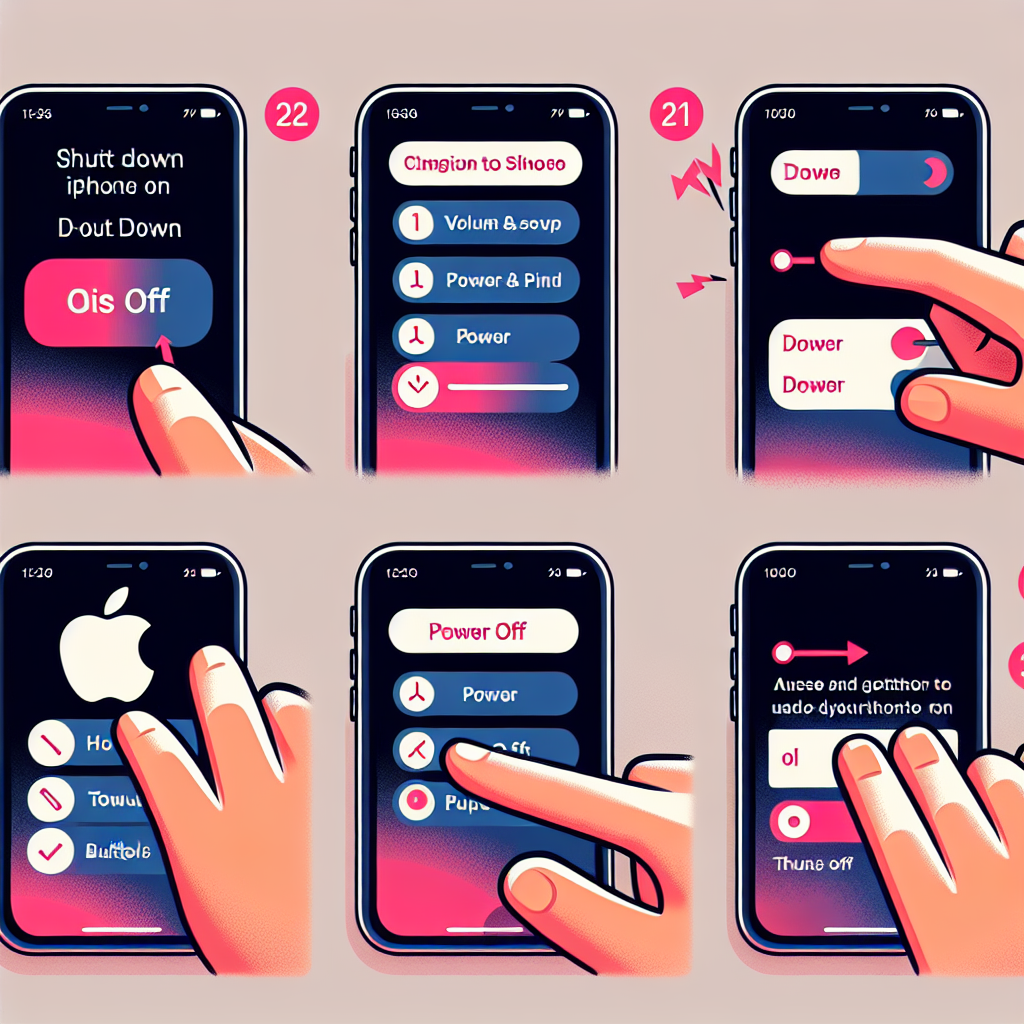
One of the fastest methods to shut down your iPhone is through the hardware buttons. This technique has existed since at least iOS 11 and is compatible with all recent models.
Steps to Power Off Using Buttons:
- Press and hold the Volume Up button located on the left.
- Simultaneously, press and hold the Side button on the right.
- Continue holding until the shutdown screen shows up.
- Release the buttons and swipe the power slider from left to right to confirm.
This approach is especially advantageous if your touchscreen is not responding or is frozen.
Method 2: Using Siri to Power Off
For those who prefer a hands-free option, you can instruct Siri to turn off your iPhone.
Steps to Power Off Using Siri:
- Activate Siri by holding down the Side button or using “Hey Siri” if voice activation is enabled.
- Say, “Siri, power off.”
- Siri will present a confirmation prompt. Tap the on-screen power slider to confirm the shutdown.
This option is helpful when your physical buttons are not functioning properly or if you’re looking for an alternative way to power off your device.
Method 3: Silent Shutdown Using Siri
There may be times when speaking to Siri isn’t appropriate, such as during a quiet meeting or in a public place. Luckily, you can utilize Siri in silence.
Steps for Silent Shutdown:
- Press and release the Volume Up button.
- Press and release the Volume Down button.
- Press and hold the Side button until the power-off slider appears.
- Swipe to confirm.
This method is beneficial when you need to power down quietly.
Method 4: Shutting Down Through Settings
If you prefer a software-driven approach, iOS offers a method to shut down your phone via the Settings app.
Steps to Shut Down via Settings:
- Open the Settings app.
- Scroll down and select General.
- Scroll to the bottom and tap Shut Down.
- Swipe the power slider to turn off your device.
This approach is particularly useful if your physical buttons are not working correctly.
Method 5: New Control Center Shutdown in iOS 18
With iOS 18, Apple has rolled out the simplest method yet—shutting down directly from the Control Center.
Steps to Shut Down Using Control Center:
- Swipe down from the top-right corner of your screen to open Control Center.
- Locate the power icon (a circle with a vertical line).
- Press and hold the power icon.
- The shutdown screen will appear—swipe to power off.
This new method simplifies shutting down your iPhone more than ever.
Why Apple Doesn’t Promote These Methods
Although there are multiple ways to turn off an iPhone, Apple does not extensively advertise these features. This strategy is in line with Apple’s philosophy of enabling seamless, uninterrupted device usage. Historically, Apple has favored keeping power controls discreet—Steve Jobs himself preferred minimal visibility for power switches on devices.
Conclusion
With iOS 18, Apple provides five distinct methods to shut down your iPhone, each designed to meet various user preferences and situations. Whether you opt for hardware buttons, Siri, or the new Control Center shortcut, you have numerous options at your disposal.
By being aware of these methods, you can ensure you’re never left in a bind when trying to turn off your device, whether for routine maintenance, troubleshooting, or battery conservation.
Frequently Asked Questions (FAQs)
1. Why might I want to turn off my iPhone instead of using sleep mode?
Completely turning off your iPhone can assist in conserving battery life, troubleshooting problems, or preventing unwanted notifications. It also ensures a fresh start when rebooting your device.
2. Does frequently turning off my iPhone damage it?
No, regularly shutting down your iPhone is not harmful to the device. In fact, occasionally restarting can enhance performance by clearing cached data and background processes.
3. What should I do if my iPhone is frozen and won’t power off?
If your iPhone is frozen, perform a force restart by pressing and releasing the Volume Up button, followed by the Volume Down button, and then holding the Side button until the Apple logo appears.
4. Can I schedule my iPhone to turn off automatically?
No, iOS does not currently provide a built-in feature for scheduling automatic shutdowns. However, you can use Downtime in Screen Time to limit phone usage during specific hours.
5. Does the Control Center power button function in older iOS versions?
No, the Control Center power button is a feature introduced in iOS 18 and is unavailable in earlier iOS iterations.
6. Is there a method to turn off my iPhone without using the screen?
Yes, you can power off your iPhone without using the screen by pressing and holding the Volume Up + Side button until the power slider appears. If your screen is entirely unresponsive, a hard reset may be necessary.
By mastering these shutdown techniques, you can effectively manage your iPhone’s power and functionality, ensuring a smooth experience with iOS 18.