Apple 05
Steps to Include an Email Account in Apple Mail
How to Set Up an Email Account in Apple Mail: A Comprehensive Guide In the current fast-evolving digital landscape, maintaining an organized email system...
- Published
5 minute read
How to Set Up an Email Account in Apple Mail: A Comprehensive Guide
In the current fast-evolving digital landscape, maintaining an organized email system is more essential than ever. For Apple users, the built-in Apple Mail application on your iPhone or Mac provides an effortless way to oversee various email accounts in one location. This guide will lead you through the procedure of integrating an email account into Apple Mail, regardless of whether you’re utilizing iOS or macOS. Additionally, we’ll share some practical tips to ensure you fully benefit from your Apple Mail experience.
Why Apple Mail Is the Preferred Email App for Numerous Users
For many Apple enthusiasts, the Mail application serves as the most practical and intuitive option for email management. Pre-installed on all Apple devices, including iPhones, iPads, and Macs, it integrates flawlessly with other Apple services such as iCloud, Calendar, and Contacts.
The true strength of Apple Mail comes from its capacity to consolidate multiple email accounts into one central location. Whether you utilize iCloud, Gmail, Yahoo, or any other email service, Apple Mail permits you to access all your messages within a single inbox. This not only conserves time but also simplifies organization.
How to Integrate an Email Account into Apple Mail on iOS
Incorporating an email account into the Mail application on your iPhone is an uncomplicated procedure. Here’s what you need to do:
Step-by-Step Guide:
- Launch the Settings App: First, tap on the Settings application on your iPhone’s home screen.
- Go to Mail Settings: Scroll down and select “Mail” to enter its settings.
- Choose ‘Mail Accounts’: Tap on “Mail Accounts.”
- Select ‘Add Account’: Click on “Add Account” to begin the process.
- Choose Your Email Provider: A list of popular email providers like iCloud, Google, Yahoo, and more will appear. Select the one you wish to add.
- Follow Provider-Specific Instructions: The setup process may vary slightly by provider, but typically, you’ll need to input your email address and password.
That’s all! Your email account will now synchronize with the Mail application. You’ll also have the option to sync additional services such as Contacts, Calendars, and Reminders, although you can opt to sync exclusively emails if preferred.
How to Integrate an Email Account into Apple Mail on macOS
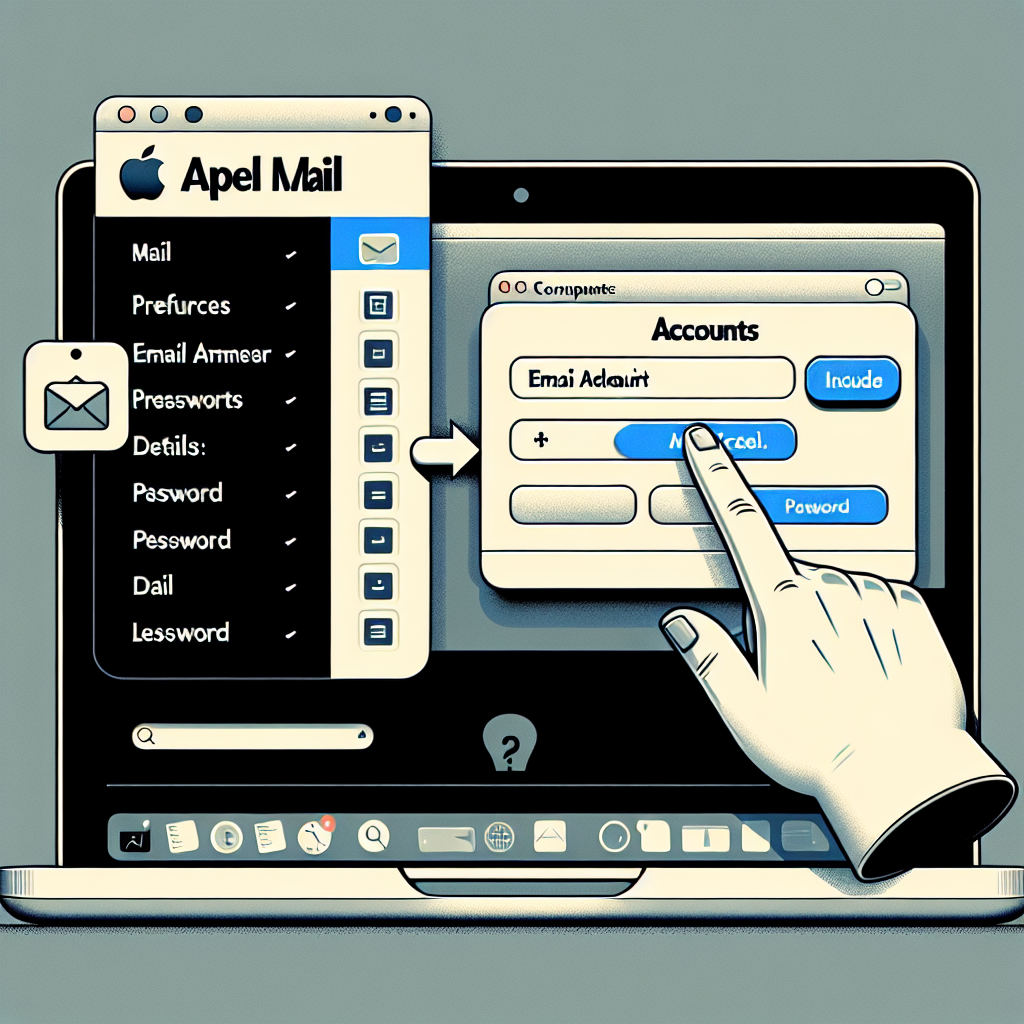
The method for adding an email account to Apple Mail on your Mac echoes the iOS version but has a few variations. Here’s how to proceed:
Method 1: Adding an Account Directly in the Mail App
- Launch the Mail App: Click on the Mail app icon in your dock or Applications folder.
- Access the Mail Menu: Select “Mail” from the top menu bar.
- Select ‘Add Account’: From the dropdown menu, choose “Add Account.”
- Choose Your Email Provider: Just like on iOS, select your email provider from the list.
- Follow Provider-Specific Steps: Enter your email and password as prompted.
Method 2: Adding an Account via System Preferences
- Open System Preferences: Click on the Apple logo in the upper-left corner and select “System Preferences.”
- Navigate to Internet Accounts: Click on “Internet Accounts” in the sidebar.
- Select ‘Add Account’: Choose “Add Account” to begin.
- Pick Your Email Provider: As with the previous steps, select your email provider from the list.
- Follow the Prompts: Complete the setup by entering your email details.
Similar to iOS, you have the option to sync additional services like Contacts and Calendars when adding your email account on macOS.
Tips for Managing Multiple Email Accounts in Apple Mail
Handling multiple email accounts can be daunting, but Apple Mail offers several features to help streamline your organization:
Unified Inbox
After adding multiple accounts, you can view emails from each account individually or utilize the unified inbox feature to see all your messages consolidated in one spot. This is especially beneficial for those who deal with a significant volume of emails daily.
Custom Notifications
Apple Mail allows customization of notifications for each account. For example, you can opt to receive alerts exclusively for your work email while silencing personal emails during business hours. This can aid in maintaining focus and minimizing distractions.
Filtering and Organization
Apple Mail provides effective filtering and organization capabilities. You can create folders, flag urgent messages, and even set rules for automatic sorting. These functionalities are crucial for maintaining a tidy inbox.
Conclusion
Apple Mail is a robust tool for anyone needing to adeptly manage multiple email accounts. Whether you’re on an iPhone or a Mac, adding an email account is a fast and straightforward process. By adhering to the steps detailed in this guide, you can centralize your emails, making it easier than ever to remain organized and productive.
Q&A: Frequently Asked Questions About Adding Email Accounts in Apple Mail
Q: Is it possible to add numerous email accounts in Apple Mail?
A: Certainly, you can add various email accounts in Apple Mail. The application accommodates a wide range of email providers, allowing you to manage all your emails conveniently.
Q: Will I receive notifications for all the email accounts added?
A: Yes, however, you can personalize notifications for each account. This way, you can control which accounts send notifications and which do not.
Q: Can I sync only emails and not other services like Contacts or Calendars?
A: Certainly! During the email account setup, you can opt to sync solely emails and bypass syncing other services like Contacts or Calendars.
Q: What should I do if my email provider isn’t listed?
A: If your email provider is absent from the list, you can manually enter the server settings by selecting “Other” when setting up the account.
Q: How can I remove an email account from Apple Mail?
A: To delete an email account, navigate to the Mail settings on iOS or the Internet Accounts section on macOS, select the account you wish to eliminate, and then choose “Delete Account.”
By following these steps and suggestions, you can fully leverage Apple Mail and maintain an organized inbox, regardless of how many email accounts you oversee.